Can You Use Fingerprint Login on Non-Genuine Windows? Full Guide & Analysis
In the digital age, fingerprint login—a form of biometric technology—has gained widespread popularity due to its convenience and security. Many users opt for wireless fingerprint mice to enhance their computer login experience, particularly Windows users. But a common question arises: Can fingerprint login be used on non-genuine Windows systems? This article will delve into this issue and provide clear, easy-to-understand answers to help you maximize fingerprint functionality regardless of your system version.
What is fingerprint login? How does it work?
Fingerprint login is a biometric authentication method that grants access by scanning a user’s unique fingerprint pattern. In Windows systems, this typically integrates with the Windows Hello feature, allowing users to quickly log in to their devices using a fingerprint sensor (such as a wireless fingerprint mouse) without entering a password. This method not only saves time but also enhances security, as fingerprints are difficult to replicate.
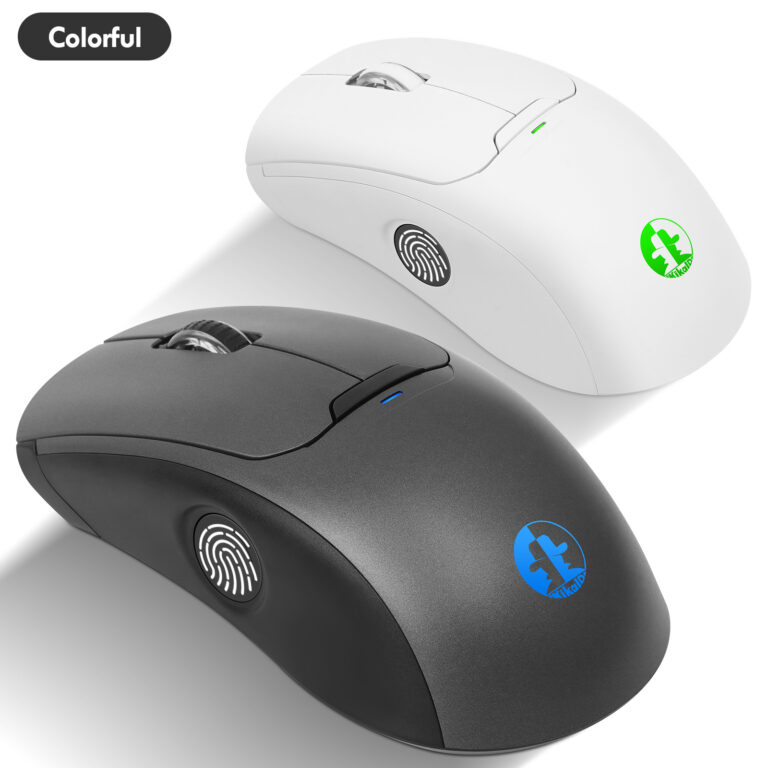
For wireless fingerprint mouse users, the device’s built-in sensor captures fingerprint data and matches it against a pre-registered template. If the match is successful, the system grants access. The entire process relies on the coordinated operation of hardware (like the mouse) and software (like Windows drivers).
Does non-genuine Windows support fingerprint login? Key factors explained
The short answer is: It may support it, but with limitations and instability. Non-genuine Windows systems (typically unauthorized or modified versions) may differ functionally from genuine systems, impacting fingerprint login availability. Key factors include:
Driver Compatibility: Fingerprint login requires proper drivers to support hardware devices. Non-genuine systems may lack official updates or drivers, preventing wireless fingerprint mice from being recognized or functioning correctly. Genuine Windows regularly provides driver support through updates, which unlicensed systems may not receive.
Dependency on Windows Hello: Fingerprint login in Windows is often implemented via Windows Hello, requiring system-level support. Unlicensed systems may disable or modify this feature, blocking fingerprint authentication. For instance, some modified systems remove biometric components to conserve resources.
Missing security updates: Non-genuine systems often cannot receive critical security updates, potentially leaving fingerprint sensors vulnerable to attacks or causing functionality failures. Biometric data involves privacy, and lacking updates increases risks.
Hardware requirements: Even with a non-genuine system, fingerprint login still depends on hardware compatibility (such as your wireless fingerprint mouse). If the mouse itself supports generic drivers, it may work on some non-genuine systems, but performance could be unstable.
Based on the above, fingerprint login can theoretically be attempted on unlicensed Windows systems. However, success depends on specific system configuration, hardware compatibility, and driver status. In practice, many users report inconsistent fingerprint login functionality on unlicensed systems, making it unreliable.

Solution: Implement Fingerprint Login Using Shenzhen Kikaid Security’s Kikaid Software with a Wireless Fingerprint Mouse
For users on non-genuine Windows systems, a reliable solution is now available: Shenzhen Kikaid Security’s Kikaid software paired with a wireless fingerprint mouse. This third-party biometric authentication software is specifically designed to overcome the limitations of non-genuine systems, enabling secure fingerprint login functionality without relying on Windows Hello.
Implementation Steps:
1. Download and install Kikaid software:
Visit the official website of Shenzhen Kikaid Security to download the latest version of Kikaid software. The installation process is simple and intuitive—simply follow the wizard steps. The software is compatible with multiple Windows versions (including non-genuine systems) and offers a free trial.
2. Connect the Wireless Fingerprint Mouse:
Connect your wireless fingerprint mouse to the computer via its USB receiver or Bluetooth. Kikaid software automatically detects most mainstream fingerprint mouse devices without requiring additional driver installation.
3. Register Fingerprint Information:
Open Kikaid software and navigate to the fingerprint registration interface. Place your finger on the mouse sensor as prompted, capturing fingerprint data multiple times to enhance recognition accuracy. The software supports registering multiple fingerprints for convenient use by different users.
4. Configure Login Options:
Within the software settings, enable the “Windows Login Replacement” feature. Kikaid creates a secure authentication channel that bypasses the system’s built-in biometric limitations. You may also set a backup password in case fingerprint recognition fails.
5. Test Login Functionality:
After locking your computer or restarting, attempt fingerprint login. Kikaid software will automatically activate at the system login screen, awaiting fingerprint verification. Upon successful recognition, the system will directly enter the desktop.
Solution Advantages:
No System Modification Required: Kikaid operates at the application layer without altering system files, preserving system stability.
▷High Compatibility: Supports Windows 7/8/10/11 and various versions, including non-genuine and modified systems.
▷Enhanced Security: Employs AES-256 encryption to protect fingerprint data. All authentication processes occur locally, eliminating privacy leakage risks.
▷User-Friendly: Intuitive Chinese interface with simple setup and automatic periodic updates
This solution delivers enterprise-grade fingerprint login security for non-genuine systems, ideal for users requiring convenient access without genuine Windows.
Why Choose Genuine Windows? Benefits & Recommendations
Investing in genuine Windows unlocks full fingerprint login capabilities while enhancing overall computing experience. Genuine system guarantees:
▷Security: Regular updates protect your biometric data from threats.
▷Compatibility: Seamless support for hardware like wireless fingerprint mice.
▷Reliability: Reduced crashes and errors ensure efficient workflows.
For wireless fingerprint mouse users, genuine Windows maximizes device potential, enabling faster and more secure logins. If convenience and privacy matter to you, upgrading to a genuine system is a wise choice.
Weigh the pros and cons to make an informed choice
In summary, non-genuine Windows systems may support fingerprint login in certain scenarios, but they are often unreliable and risky due to driver, update, and feature limitations. By using Shenzhen Qijia Security’s Kikaid software with a wireless fingerprint mouse, users can overcome these limitations and achieve a stable fingerprint login experience.
If you rely on fingerprint login for daily use, consider this solution or switch to genuine Windows for the best experience. As a wireless fingerprint mouse user, ensuring your system is genuine or employing professional alternatives enhances overall security. For further questions or assistance selecting compatible hardware, explore our website for more information. The future of fingerprint login is bright—but its true potential can only be realized on a stable system foundation.
By understanding these factors, you can make informed decisions and enjoy the convenience technology offers. Click here for more tips and tutorials on wireless fingerprint mice!