Wireless Fingerprint Mouse with ESS Technology for Windows Hello Security
As Windows 11 and subsequent versions continue to elevate security requirements, Microsoft introduced official support for Enhanced Security Sensor (ESS) fingerprint sensors in late 2025, paving the way for secure biometric authentication on peripherals like wireless fingerprint mice.
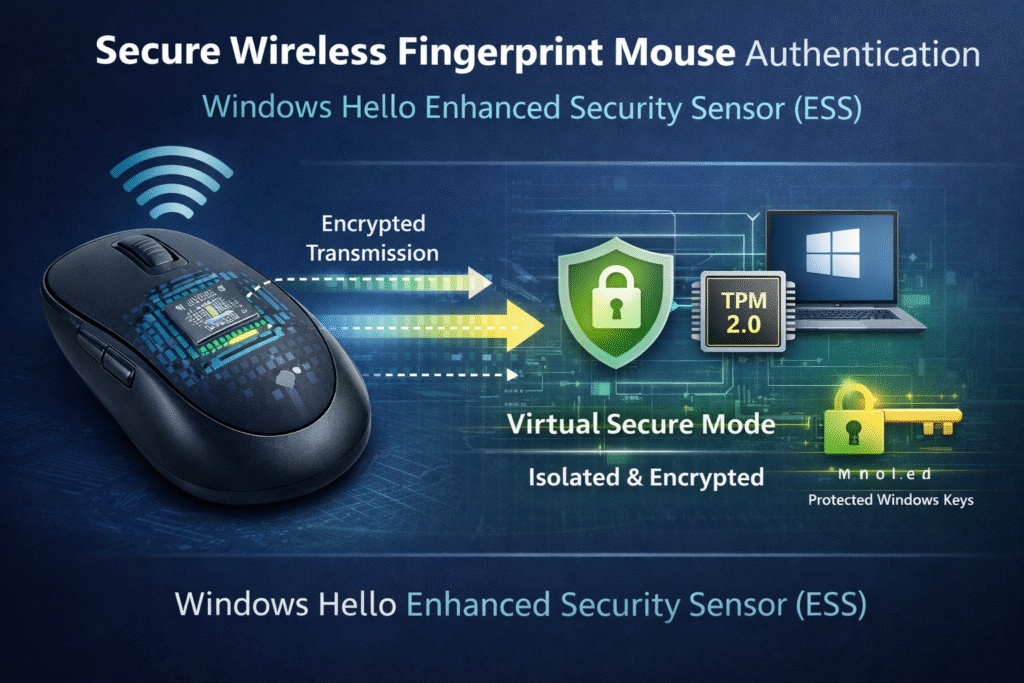
Virtualization-based Security (VBS) and Trusted Platform Module 2.0 (TPM 2.0) provide hardware-level isolation protection for fingerprint data collection, transmission, and verification.
01 Technical Implementation: End-to-End Security from Sensor to System
Enabling Windows Hello functionality on wireless fingerprint mice requires more than simply integrating a fingerprint sensor; it demands compliance with Microsoft’s full suite of Enhanced Security for Sign-in (ESS) technical requirements.
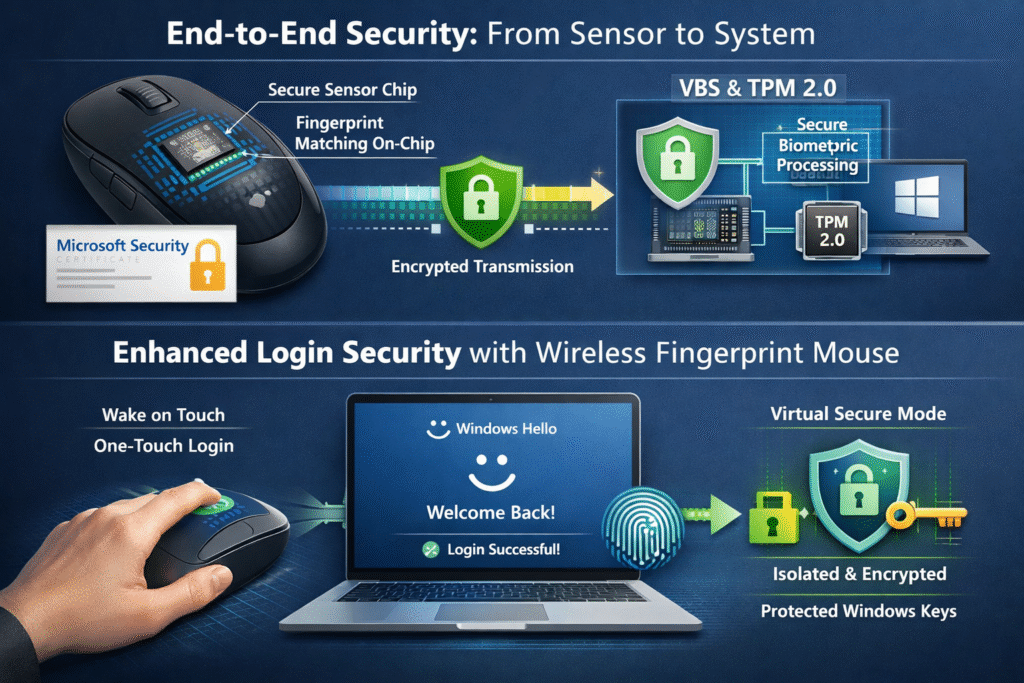
The core of ESS lies in hardware isolation and secure communication. ESS-compliant fingerprint sensors must incorporate a microprocessor and dedicated memory to perform fingerprint matching and template storage entirely within the chip, rather than transmitting raw biometric data to the host system.
During manufacturing, the sensor requires burning in a digital certificate issued by Microsoft. This certificate can be verified by the Windows Biometric Component running within VBS and is used to establish a secure session.
When a user touches the sensor, the fingerprint matching process occurs entirely within the sensor itself. Only the matching result is transmitted via a secure channel to the biometric component in VBS. This design ensures that even if the system is infected with malware, fingerprint data remains protected from exposure.
02 Hardware Requirements: More Than Just Adding a Sensor
To achieve true Windows Hello Enhanced Login Security, wireless fingerprint mice must meet a series of stringent hardware and firmware requirements. Fundamentally, the sensor must perform fingerprint matching on-chip, not merely capture images.
Per Microsoft technical documentation, ESS-enabled fingerprint sensors must incorporate “a microprocessor and memory capable of performing hardware-isolated fingerprint matching and template storage.” This necessitates upgrading traditional optical or capacitive fingerprint capture modules to intelligent sensors with independent processing capabilities.
At the system level, the host must meet VBS requirements, including enabling Device Guard and TPM 2.0. Device firmware must include a manufacturer-configured Secure Device (SDEV) ACPI table, which defines which peripherals are considered secure devices and receive special protection.
For compatibility verification of fingerprint sensors, users can confirm the device’s security capabilities by checking the registry path: Under HKLM\SYSTEM\CurrentControlSet\Enum[DeviceInstancePath]\Device Parameters\WinBio\Configurations, a registry entry named “SecureFingerprint” should exist with a data value of 1.
03 Security Verification: Ensuring Wireless Transmission Remains Unintercepted
The primary security challenge for wireless fingerprint mice is safeguarding fingerprint data during wireless transmission. Devices compliant with the ESS standard address this through multi-layered encryption and verification mechanisms.
First, the secure session established between the sensor and the Windows Biometric Component employs end-to-end encryption. This ensures that even if the wireless signal is intercepted, attackers cannot decrypt the transmitted content.
Second, the Windows Biometric Component running in VBS establishes a secure channel with the TPM. Information shared between VBS and the TPM during startup is used to establish this channel. Upon successful matching, the biometric component authorizes access to Windows Hello keys through this channel.
Users can verify ESS functionality via Event Viewer. Under Event Viewer > Application and Service Logs > Microsoft > Windows > Biometric > Operations, events with ID 1108 display sensor information.
When the device operates with ESS enabled, sensors are designated as “isolated within the Virtual Secure Mode process.” Windows Security also displays an “Enhanced Login Security” entry, confirming the system’s hardware capabilities are activated.
04 User Experience: Seamless Login and Wake on Touch
Implementing Windows Hello on wireless fingerprint mice requires balancing security with user experience. Wake on Touch (WoT) is a key technology for enhancing this experience.
Starting with Windows 11 version 22H2 featuring KB5027303, WoT is now supported on ESS devices. This enables users to wake the system and complete login simultaneously with a single touch of the fingerprint sensor—eliminating the need to press the power button before fingerprint verification.
This feature is particularly suited for devices supporting modern standby. When the system is asleep, the fingerprint sensor remains in low-power monitoring mode. Upon detecting a valid touch, it triggers system wake-up and initiates the authentication process.
For wireless mice, power management optimization is also required to ensure the fingerprint sensor’s standby state does not impact the mouse’s overall battery life. This necessitates sensor designs employing advanced low-power technologies to extend usage time without compromising security.
05 Compatibility and Troubleshooting
Although Microsoft has announced support for peripheral ESS fingerprint sensors, compatibility issues still require attention during actual deployment. According to Microsoft documentation, enabling ESS restricts biometric sensors to only those supporting ESS.
If encountering fingerprint authentication issues, troubleshoot as follows: First, verify VBS is running. In System Information under “System Summary,” “Virtualization-Based Security” should display as “Running.”
Second, verify that the biometric isolation trustlets are running. These should appear under System Information > Software Environment > Running Tasks as bioiso.exe and ngciso.exe.
For driver issues, locate the sensor in Device Manager (under Biometric Devices), right-click and select Uninstall device, then reinstall the driver. After restarting the device, Windows will attempt to reinstall the driver.
If the issue persists, restart the biometric service via Command Prompt (as Administrator) by entering net stop wbiosrvc && net start wbiosrvc, or delete and re-register the PIN in Settings > Sign-in options.
In Windows Security, users can now see the wireless fingerprint mouse recognized as an ESS-compliant secure device next to the “Enhanced Sign-in Security” entry. In the biometric logs of Event Viewer, each successful fingerprint verification leaves an encrypted record. Attackers attempting to intercept wireless signals encounter layers of encryption and hardware isolation, receiving only meaningless gibberish.
By the end of 2025, when Microsoft fully supports peripheral ESS devices, compliant wireless fingerprint mice will become the new standard for PC login. Devices failing to meet security requirements will gradually disappear from enterprise procurement lists.